
Explore a new product color
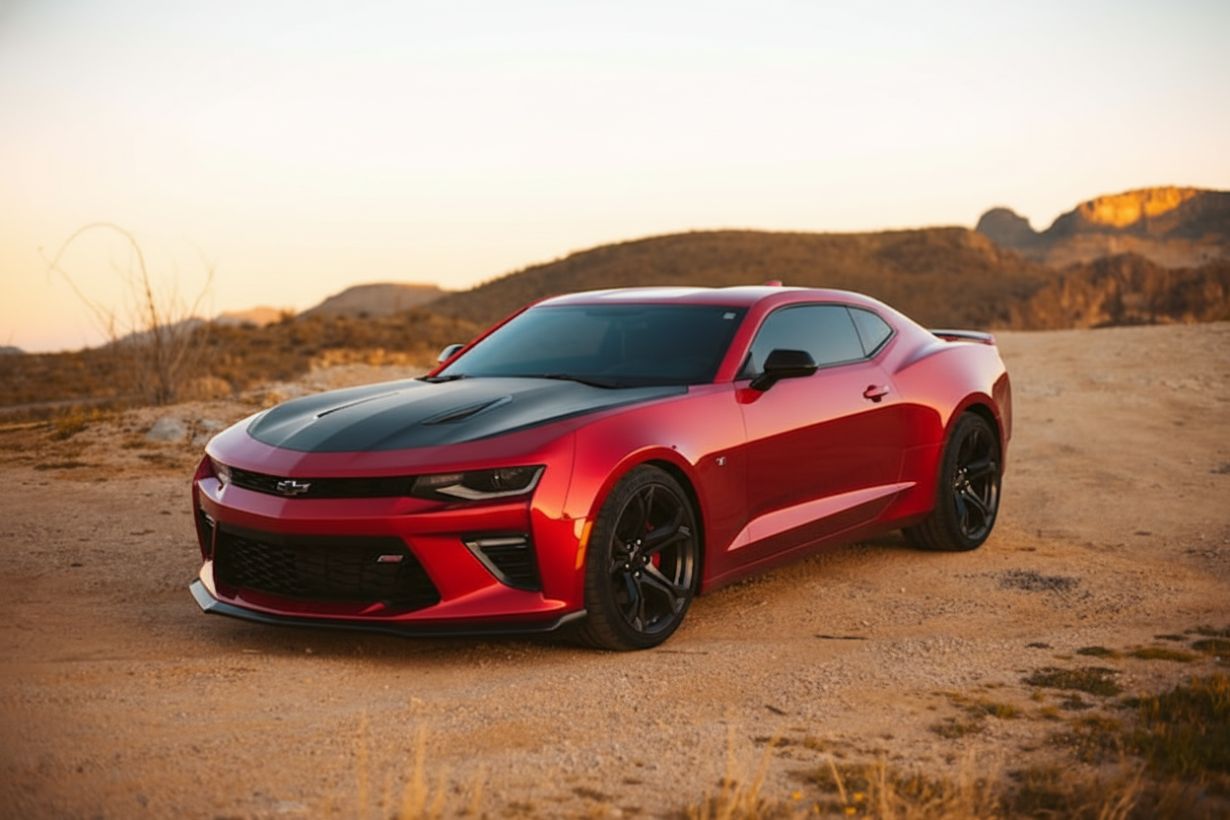
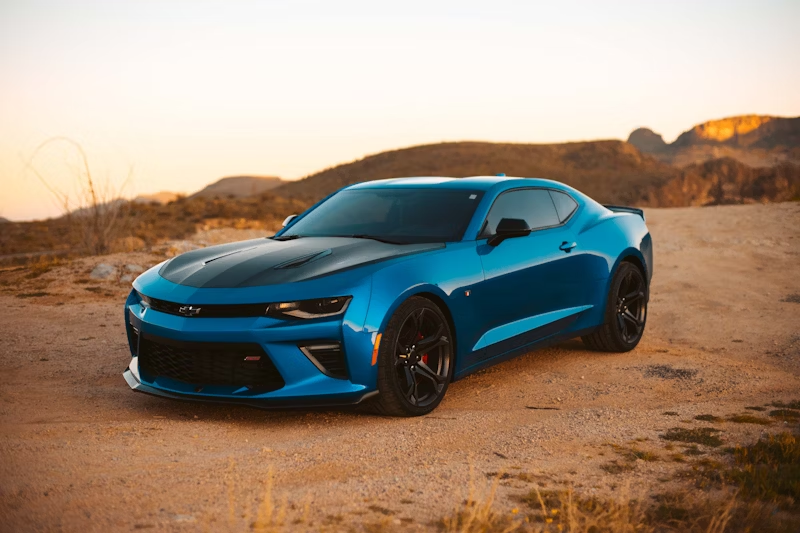
Try a different finish on furniture, clothing, packaging, or a vehicle before creating another photo shoot.
Prompt used:
“Repaint the car body to glossy candy apple red, preserving reflections”
Upload an image, name an object or its current color, and describe the new look. The Recolor Agent plans one focused edit while protecting everything else.
Try an example conversation
Skip masks, layers, and complicated controls. Tell the agent which object to recolor, or identify the visible source color you want replaced.


Try a different finish on furniture, clothing, packaging, or a vehicle before creating another photo shoot.
Prompt used:
“Repaint the car body to glossy candy apple red, preserving reflections”
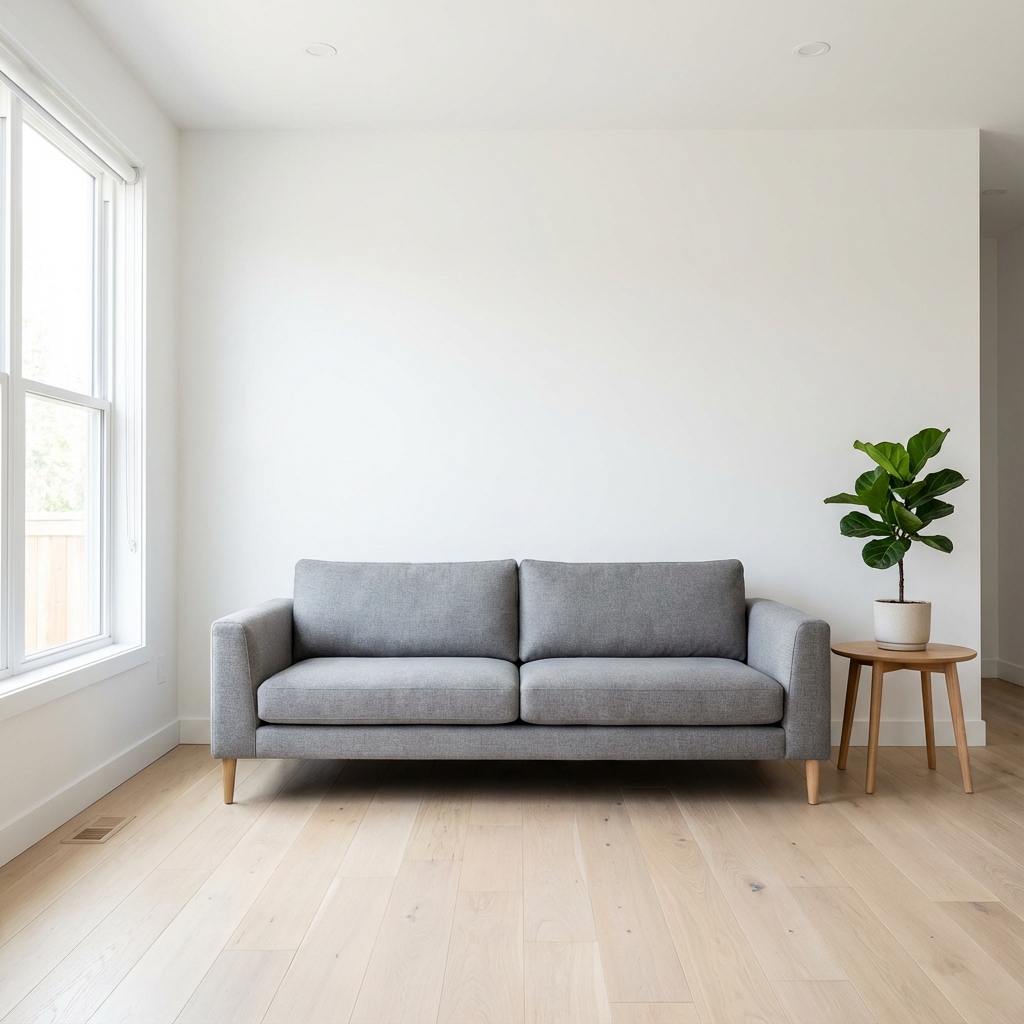
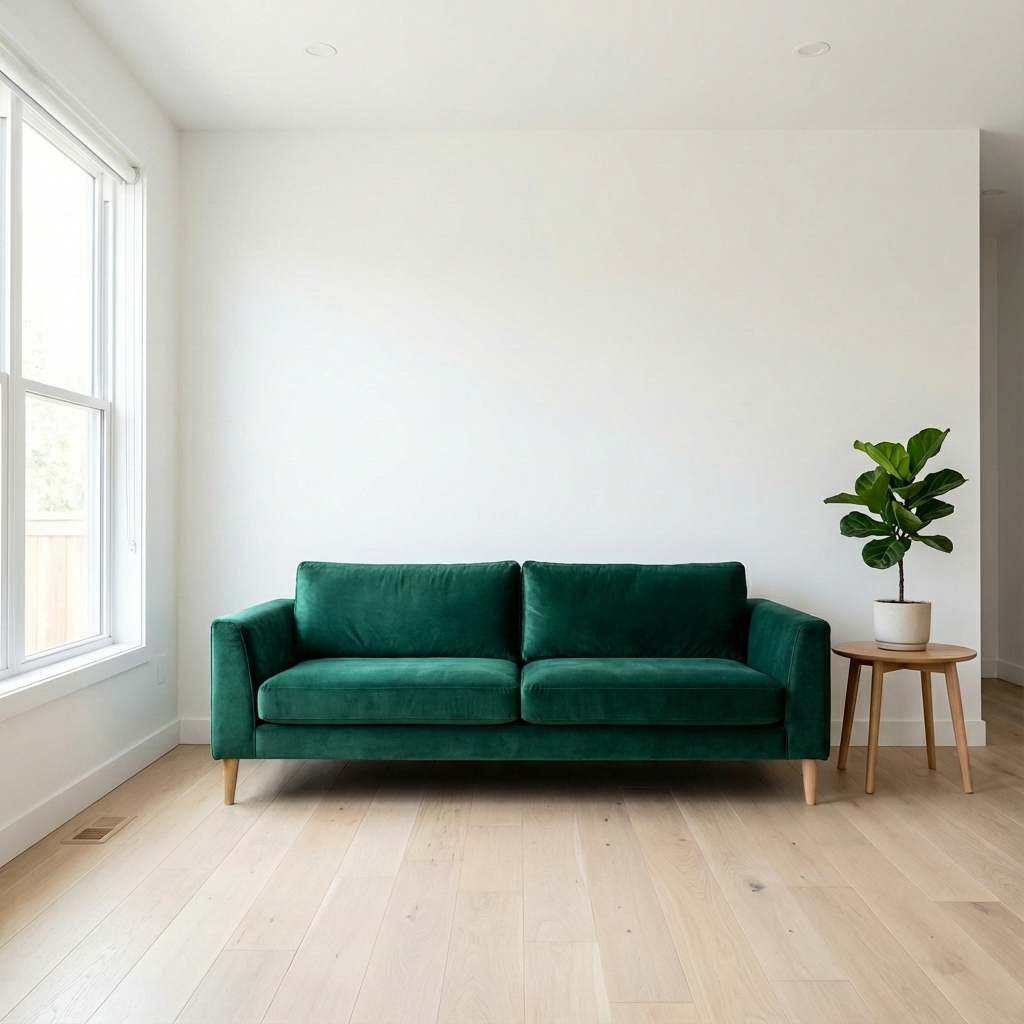
Name the thing you care about. The plan locks onto that object and protects the room around it.
Prompt used:
“Make the sofa forest green”


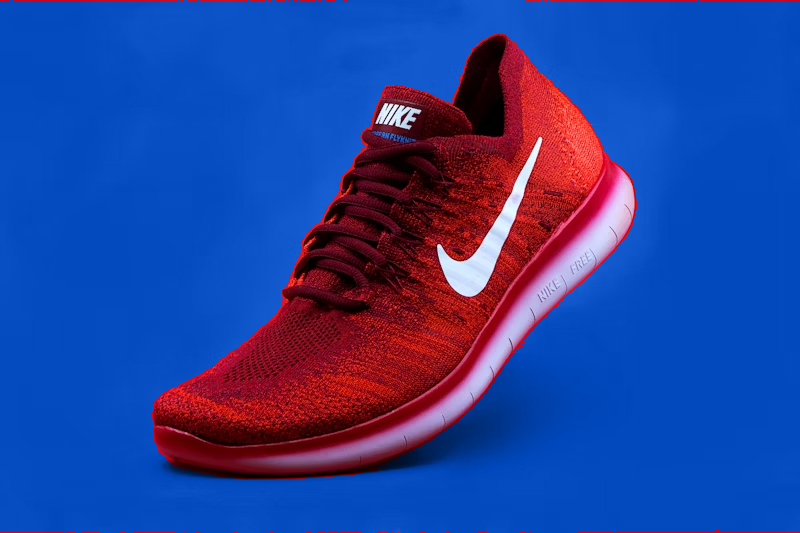
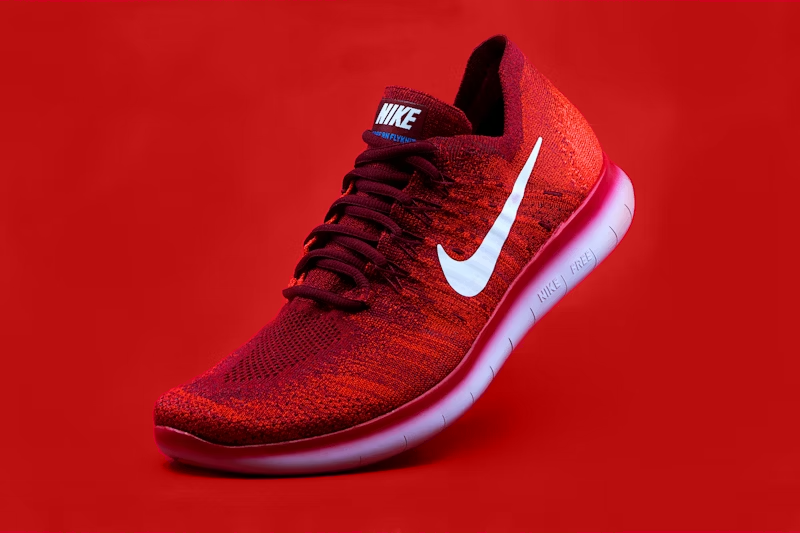
Refer to a visible color when that is clearer. Here, the red background becomes blue while the shoe remains the subject.
Prompt used:
“Change the red background to blue”
Use the same focused AI image color changer across common creative and commercial workflows. Describe the object or visible source color, then keep the rest of the photograph intact.
Preview another product color before manufacturing, restocking, or arranging a new photo shoot. Recolor the item, label, container, or one visible component while keeping reflections and material detail.
Try a new color on a jacket, dress, sneaker, handbag, or fabric panel. The edit stays focused on the named piece instead of restyling the person or replacing the scene.
Explore sofa, chair, cabinet, wall, and décor colors in the original room. Natural light, shadows, surrounding objects, and the existing composition remain part of the image.
Test paint colors on a car, bicycle, helmet, sign, or graphic surface. Ask the agent to preserve highlights, contours, logos, and nearby details while changing the selected color.
Use a short request in everyday language. A named object and target color are usually enough.
Before editing, see the selector, target color, and details the agent intends to preserve.
Clear requests run one recolor tool. Ambiguous requests get one focused question instead of a guess.
A narrower agent is easier to trust. It has one editing tool and a strict gate in front of it.
What it will not do
It will not add or remove objects, replace a scene, reshape subjects, swap materials, retouch faces, or create an unrelated image from scratch.
No. It is intentionally limited to color changes on an image you provide. That narrow scope makes short instructions easier to interpret and safer to execute.
Name an object or local region and a target color. The agent creates a structured selection plan and asks for clarification if the reference is ambiguous.
Yes. Describe the visible source color and the target color. If that source color appears in unrelated places, the agent can ask which region you mean.
The edit prompt explicitly protects texture, lighting, shadows, shape, composition, and unselected regions. Results still depend on the clarity of the image and the editing model.
Yes. Continue with requests such as darker, warmer, or less saturated. The latest result becomes the next image you edit.
You can upload AVIF, JPEG, PNG, or WebP images up to 10 MB. A clear, well-lit source image usually gives the editing model more detail to preserve.
Yes. Product photos are a strong fit when the item is clearly visible. Describe the product or part to change and the target color, then review the agent's plan before the edit runs.
Yes, when the background is a clear region or visible source color. Describe the current background and the target color, and mention that the subject, edges, shadows, and reflections should stay unchanged.
Upload a photo, describe the change, and let the agent separate what should change from what must stay untouched.